Configure WireGuard L3 Routing + NAT on Debian Linux

Preface

The company I work for uses a DrayTek router model that does not support WireGuard. By running WireGuard on a Debian VM instead, we gain:

  • Performance decoupled from router hardware: the VM can scale (CPU/RAM/NIC), giving better crypto throughput.
  • Clean, flexible routing: send only specific subnets (e.g., 192.168.0.0/24, 192.168.10.0/24) through the tunnel—no extra client-side commands.
  • Keep personal internet as-is: regular web traffic does not exit via the company gateway, so external sites don’t see the company IP and your browsing isn’t slowed by the office uplink.
  • Broad client compatibility: easy setup on Windows/macOS/Linux and mobile.

Goal: Let external Windows 11 clients connect via WireGuard and access 192.168.0.0/24 and 192.168.10.0/24 behind a DrayTek router. Approach: Layer-3 routing + NAT (egress interface ens18).


0) Server environment

  • Debian 12
  • KDE Plasma

    installed for GUI convenience. Note: GUI network tools (NetworkManager) affect which commands manage the NIC (e.g., nmcli vs /etc/network/interfaces).


1) Topology & key parameters

  • WG server (Debian VM)

    • Interface: ens18
    • LAN IP: 192.168.0.70/24
    • Gateway: 192.168.0.251 (DrayTek)
    • WG tunnel IP: 10.10.0.1/24
  • Windows 11 client

    • WG tunnel IP: 10.10.0.2/32
  • DrayTek

    • Must port-forward UDP 51820 → 192.168.0.70:51820
    • VLANs 192.168.0.0/24 and 192.168.10.0/24 are inter-routable

1.5) Router / Port Forwarding (DrayTek or your own router)

Your router must forward WireGuard UDP traffic from the internet to your Debian WG server.

DrayTek example (replace with your actual router if different):

  • Type: Port Forward / NAT
  • Protocol: UDP
  • External port: 51820
  • Internal host (server): 192.168.0.70
  • Internal port: 51820
  • Comment: WireGuard
  • Ensure any WAN firewall rule also permits UDP/51820.

Using a different brand/model?
Do the equivalent:

  1. Create a UDP port-forward from the WAN to your WG server’s LAN IP (192.168.0.70) on port 51820.
  2. If your router has a separate firewall, add an allow rule for UDP/51820 inbound.
  3. If you’re behind double NAT (ISP modem + your router), set the forward on both devices or place your router in bridge/DMZ mode on the upstream.
  4. If your ISP uses CGNAT (Common in Japan), inbound port forwarding may not be possible—use a public IP, a VPS relay, or WG peer that can accept inbound connections.

Optional (pure routing instead of NAT): if you remove NAT on the Debian server, add a static route on the router:
Destination: 10.10.0.0/24Next hop: 192.168.0.70.


2) Configure ens18 with NetworkManager (one shot)

nmcli connection add type ethernet ifname ens18 con-name ens18 \
  ipv4.addresses 192.168.0.70/24 ipv4.gateway 192.168.0.251 \
  ipv4.dns "1.1.1.1 8.8.8.8" ipv4.method manual \
  ipv6.method ignore autoconnect yes

nmcli connection up ens18
# sanity checks
ip addr show ens18
ip route get 192.168.0.251   # expect: dev ens18 src 192.168.0.70

We removed/avoid br0; no bridge is required for L3+NAT.


3) Install WireGuard & keys

apt update && apt install -y wireguard iptables tcpdump
( umask 077; wg genkey | tee /etc/wireguard/server.key | wg pubkey > /etc/wireguard/server.pub )
( umask 077; wg genpsk > /etc/wireguard/psk )   # optional but recommended
chmod 600 /etc/wireguard/server.key /etc/wireguard/psk

4) /etc/wireguard/wg0.conf (NAT egress = ens18)

[Interface]
Address    = 10.10.0.1/24
ListenPort = 51820
PrivateKey = <server.key>

# MASQUERADE traffic from 10.10.0.0/24 out via ens18
PostUp   = iptables -t nat -A POSTROUTING -s 10.10.0.0/24 -o ens18 -j MASQUERADE
PostDown = iptables -t nat -D POSTROUTING -s 10.10.0.0/24 -o ens18 -j MASQUERADE

# First client
[Peer]
PublicKey    = <client1.pub>
PresharedKey = <psk>            # remove if unused
AllowedIPs   = 10.10.0.2/32

5) Enable IP forwarding (and relax rp_filter to allow forwarding)

cat >/etc/sysctl.d/99-wg.conf <<'EOF'
net.ipv4.ip_forward=1
# Avoid reverse-path drops for wg0→ens18 forwarding
net.ipv4.conf.all.rp_filter=0
net.ipv4.conf.wg0.rp_filter=0
net.ipv4.conf.ens18.rp_filter=0
EOF
sysctl --system

6) Firewall (if applicable)

iptables -A INPUT  -p udp --dport 51820 -j ACCEPT
iptables -A FORWARD -i wg0  -o ens18 -j ACCEPT
iptables -A FORWARD -i ens18 -o wg0  -m conntrack --ctstate RELATED,ESTABLISHED -j ACCEPT

7) Bring up & auto-start

wg-quick up wg0
systemctl enable wg-quick@wg0
wg show

8) Windows 11 client client.conf

[Interface]
PrivateKey = <client.key>
Address    = 10.10.0.2/32
DNS        = 192.168.0.251

[Peer]
PublicKey    = <server.pub>
PresharedKey = <psk>                     # remove if unused
Endpoint     = <your_public_IP_or_DDNS>:51820
# Send company subnets through the tunnel
AllowedIPs   = 10.10.0.1/32, 192.168.0.0/24, 192.168.10.0/24
PersistentKeepalive = 25

If the client’s local LAN is also 192.168.0.0/24, prefer precise host routes (/32) to avoid conflicts, or temporarily use 0.0.0.0/0 to verify.


9) Validation

Windows (after connecting):

ping 10.10.0.1
ping 192.168.0.70
ping 192.168.0.251
ping 192.168.0.203
ping 192.168.10.20

Server (while pinging):

iptables -t nat -v -n -L POSTROUTING   # expect MASQUERADE on -o ens18 with growing counters
wg show                                # peer rx/tx increasing
tcpdump -ni wg0 icmp
tcpdump -ni ens18 host 192.168.0.203 and icmp
ip route get 192.168.0.203             # expect dev ens18 src 192.168.0.70

10) Quick troubleshooting

  • Only pinging 10.10.0.1 / 192.168.0.70 works
    Check ip_forward=1, rp_filter=0, and this NAT rule exists:
    -A POSTROUTING -s 10.10.0.0/24 -o ens18 -j MASQUERADE.

  • No 192.168.0.0/24 route on Windows
    Add it in AllowedIPs, or use /32 per-host when the local LAN conflicts.

  • Need VLAN10 access
    Just add 192.168.10.0/24 to the client’s AllowedIPs. DrayTek already routes between VLANs.

  • Prefer pure routing (no NAT)
    Add a static route on DrayTek: dest 10.10.0.0/24 → next-hop 192.168.0.70, then remove the NAT lines from wg0.conf.


Migrating an IBM Windows Server 2003 Physical Machine to Proxmox and Reducing Disk Size

This post documents the complete process of converting an old IBM physical server running Windows Server 2003 into a virtual machine on Proxmox VE, and then shrinking its 2 TB system disk down to a much smaller, space-efficient image.


1. P2V with VMware vCenter Converter (XP-Compatible Version)

Because the original system still ran within the Windows XP–era software environment, I used an older release of VMware vCenter Converter (P2V Virtual Machine Converter) — one of the few versions that still runs correctly on XP / Server 2003.

Steps

  1. Install VMware vCenter Converter on the IBM host.
  2. Choose Convert Local Machine.
  3. Set the destination format to VMware Workstation / Other VMware Virtual Machine.
  4. Export the resulting .vmdk files to an external drive or shared folder.

When finished, the converter produces a set of Windows2003.vmdk and .vmx files ready for further conversion.


2. Converting VMDK to Proxmox QCOW2

Copy the exported .vmdk file to the Proxmox storage path, for example:

/mnt/pve/nas2-in/images/602/

Then convert it to the QCOW2 format:

qemu-img convert -O qcow2 Windows2003.vmdk vm-602-disk-0.qcow2

Proxmox can now attach this QCOW2 disk directly.


3. First Boot Test

  1. Create a new virtual machine (SeaBIOS, VGA display).
  2. Attach vm-602-disk-0.qcow2 as the primary disk.
  3. Boot and verify that Windows Server 2003 starts properly.
  4. Check that IIS and custom applications still function.

If boot errors such as “NTLDR is missing” appear, boot from the Windows Server 2003 installation CD and run:

fixboot
fixmbr
bootcfg /rebuild

4. Preparing the System for Shrinking

The original disk size was 2 TB, but only around 50 GB was actually used.
Before reducing the virtual disk, the file system must be cleaned and unused blocks released.

4.1 Defragment the Disk

Run the built-in Disk Defragmenter inside Windows 2003 to move all data toward the beginning of the disk.

4.2 Zero Free Space with SDelete

Download Microsoft Sysinternals sdelete.exe and execute:

sdelete -z C:

This fills all free blocks with zeros so that later compression and trimming are effective.

Because the virtual disk was configured with an IDE interface, disk I/O was extremely slow.
In my case, SDelete took nearly two weeks to complete.
CPU and I/O utilization stayed at 100% throughout.
If you use VirtIO or SCSI storage instead, this step would finish in a few hours.


5. Shrinking the Partition in Windows 7

Windows Server 2003 cannot shrink a system partition natively.
Initially, I attempted to use Clonezilla and GParted Live, but both reported disk corruption or “invalid file system” errors and refused to resize the partition.
Even after running chkdsk /f back in Windows 2003, both tools continued to mis-detect the NTFS structure as damaged.
The issue appears to come from incompatibility between older NTFS metadata and the NTFS drivers shipped with those utilities.

The reliable workaround was to mount the QCOW2 disk inside a Windows 7 VM and use the native Disk Management utility:

  1. Power off the Windows 2003 VM.
  2. Attach its QCOW2 as a secondary disk to a Windows 7 VM.
  3. Open Disk Management (diskmgmt.msc).
  4. Right-click C:Shrink Volume, and reduce it to about 49 GB.
  5. The remaining space becomes Unallocated.

This approach worked perfectly and safely adjusted the NTFS partition size.


6. Trimming the QCOW2 Image in Proxmox

  1. Attach the QCOW2 via NBD and verify the partition table:

    qemu-nbd -r -c /dev/nbd0 vm-602-disk-0.qcow2
    fdisk -l /dev/nbd0

    /dev/nbd0p1 should report roughly 49 GB.

  2. Disconnect the mapping:

    qemu-nbd -d /dev/nbd0
  3. Safely shrink the virtual disk (leave a small buffer):

    qemu-img resize --shrink vm-602-disk-0.qcow2 52G
  4. Re-pack the image to remove zeroed blocks:

    qemu-img convert -O qcow2 vm-602-disk-0.qcow2 vm-602-disk-0-slim.qcow2

After conversion, the new QCOW2 file was only 30 – 35 GB instead of 2 TB.


7. Replace and Test

  1. In the Proxmox web UI, detach the old QCOW2 disk.
  2. Attach the new vm-602-disk-0-slim.qcow2.
  3. Boot the VM and confirm that Windows 2003 loads and all services run normally.
  4. Once verified, delete or archive the old file.

8. Results and Lessons Learned

Key takeaways:

  • The XP-compatible VMware vCenter Converter successfully performed the P2V migration.
  • Modern Windows tools can safely shrink old NTFS partitions when Clonezilla / GParted fail.
  • Clonezilla and GParted Live may misinterpret older NTFS metadata and falsely report corruption.
  • Running sdelete -z is essential for reclaiming space but extremely slow on IDE-based disks.
  • Combining sdelete + qemu-img convert provides a real, measurable disk-size reduction.

Final result

  • The original 2 TB disk image was reduced to a 52 GB virtual size and physically compressed to about 35 GB.
  • The system boots normally; IIS and internal applications work as before.
  • The only truly time-consuming step was SDelete, which required almost two weeks over IDE — using VirtIO would dramatically reduce that time.

Blocking Outbound SMB Connections from Internal PCs — DrayTek Vigor2925 Case Study

Background

Recently, multiple internal workstations were found repeatedly initiating SMB (445 / 139 / NetBIOS) connections to various public IP addresses.

Because the company policy only allows internal SMB access to a designated NAS server, this activity was deemed abnormal and suggested potential malware infection or misbehavior.

In addition to the security concern, the excessive outbound SMB traffic also caused noticeable network performance degradation.
Users reported that many websites became slow to load or failed to open entirely.
Firewall inspection revealed that the abnormal SMB traffic was consuming significant bandwidth and disrupting WAN load-balancing behavior.


Investigation and Malware Removal

Upon detection, affected hosts were examined and scanned using Kaspersky Virus Removal Tool (KVRT). KVRT identified and removed multiple types of malware, including trojans and network worms. Many of these threats attempt propagation or scanning via SMB.

After cleaning infected machines with KVRT, suspicious outbound SMB traffic noticeably decreased. However, firewall-level controls were still implemented to prevent reemergence or propagation of undetected threats.


Objectives

  1. Block outbound SMB traffic (ports 445 and 137–139) from a specific internal subnet to the Internet.
  2. Maintain legitimate SMB access from internal hosts to the authorized internal NAS.
  3. Avoid disrupting legitimate NAS services required by the organization.

Network Overview

  • Router: DrayTek Vigor2925 (dual-WAN, load balancing)

  • Internal hosts: a controlled internal subnet

  • NAS: an authorized internal file server (internal-only SMB allowed)

  • Logs: Firewall/syslog show outbound SMB attempts to multiple public IPs

    • *

Analysis

  1. The router’s default behavior permitted LAN-to-WAN traffic, allowing infected hosts to reach external SMB endpoints.
  2. Firewall logs showed numerous outbound SMB attempts and short-lived TCP state changes consistent with scanning or worm activity.
  3. Endpoint cleanup reduces immediate threats, but network-level rules are required to prevent future lateral movement or new infections spreading externally.

Network-Layer Solution

Below is a conceptual workflow to implement via the DrayTek Vigor interface (map to your router GUI):

1. Define SMB service objects and a service group

Create service objects:

  • TCP/UDP port 445 (SMB)
  • TCP/UDP ports 137–139 (NetBIOS)

Group them into a single service group named SMB.

2. Create Data Filter Rules (order matters)

Add two rules in your Data Filter set, ensuring the Allow rule is above the Block rule:

  • Allow rule (Access to NAS)
    • Direction: LAN → WAN
    • Source: the controlled internal subnet (affected hosts)
    • Destination: the authorized internal NAS (internal IP)
    • Service: SMB group
    • Action: Pass Immediately
  • Block rule (Block other SMB)
    • Direction: LAN → WAN
    • Source: the controlled internal subnet
    • Destination: Any (external)
    • Service: SMB group
    • Action: Block Immediately

If IPv6 is in use, ensure equivalent rules are applied or IPv6 filtering is enabled.

3. Enable Data Filter

In the router’s firewall general settings, enable Data Filter and assign the filter set you created. Enable strict security options where applicable.


Verification Advice

Recommended checks (execute in a controlled environment):

  • Examine firewall logs to verify the Block rule is triggered for external SMB attempts.

  • Confirm internal access to the authorized NAS remains functional.

  • On affected hosts, run netstat -ano (or equivalent) to identify any process holding outbound 445 connections and correlate PIDs to processes.

    • *

Additional Recommendations (endpoint and long-term)

  1. Continue periodic endpoint scans with KVRT or enterprise-grade anti-malware solutions.
  2. Implement outbound SMB blocking at the host firewall level as redundant protection.
  3. Apply principle of least privilege to reduce the attack surface of file sharing.
  4. Replace direct external SMB exposure with secure alternatives such as VPN or reverse proxy for remote NAS access.
  5. Set up continuous monitoring, logging, and alerting to detect spikes in outbound SMB attempts.

Conclusion

Combining endpoint remediation (KVRT) with network-layer enforcement (DrayTek Data Filter) provides a layered defense that:

  • Effectively blocks internal hosts from initiating unauthorized SMB connections to the Internet.
  • Preserves legitimate SMB access to the designated internal NAS.
  • Lowers risk of lateral movement and data exposure from compromised hosts.

This incident demonstrates a practical workflow: detect abnormal behavior, clean endpoints, enforce network restrictions, and maintain ongoing monitoring.

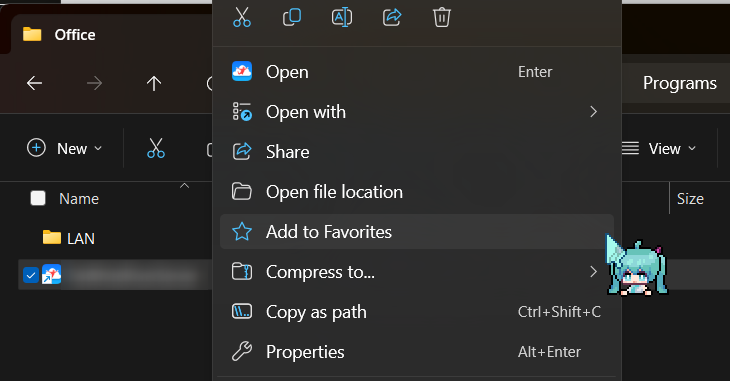
Shortcuts with Non-Executable Files Can’t Be Pinned to the Windows Start Menu

I noticed something odd recently.
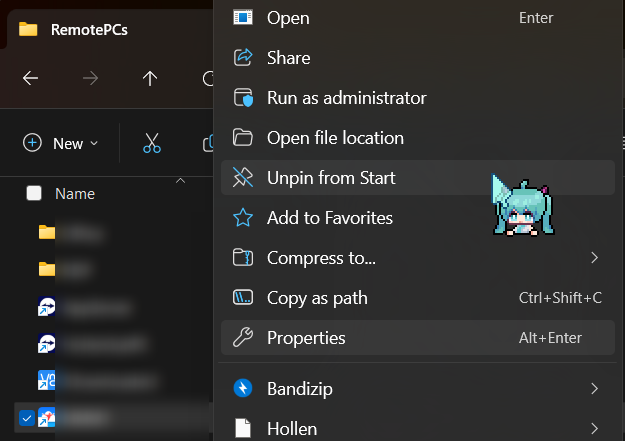
I usually pin my favorite shortcuts to the Windows 11 Start Menu,
but Jump Desktop’s .jump connection file just wouldn’t pin at all.

After some trial and error, I realized Windows simply refuses to pin files
that it doesn’t consider “launchable” — .jump extensions are one of them.

The fix turned out super simple:
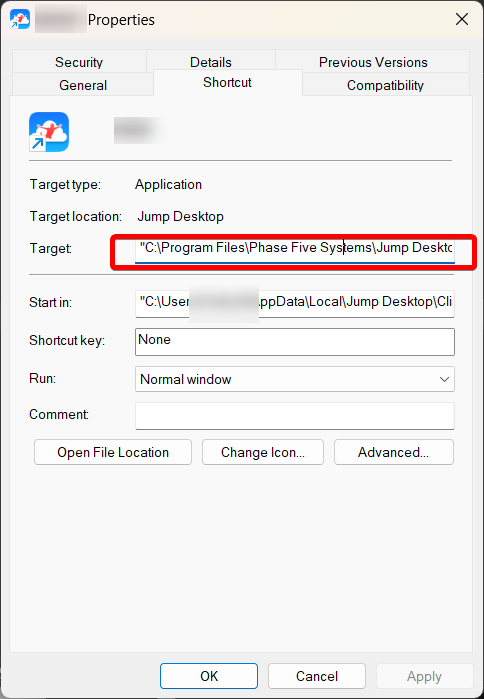
just wrap it with the actual Jump Desktop executable like this:

"C:\Program Files\Phase Five Systems\Jump Desktop\JumpClient.exe" "C:\Users\User\AppData\Local\Jump Desktop\Client\Servers\Computer - XXXXXX-Mac-Mini-M1 - XXXXXXXXXXXXXXXXXXXXXXXXXXXXXXXX.jump"


Now it pins perfectly, and the icon can be customized too.
Sometimes, Windows just wants you to wrap things nicely