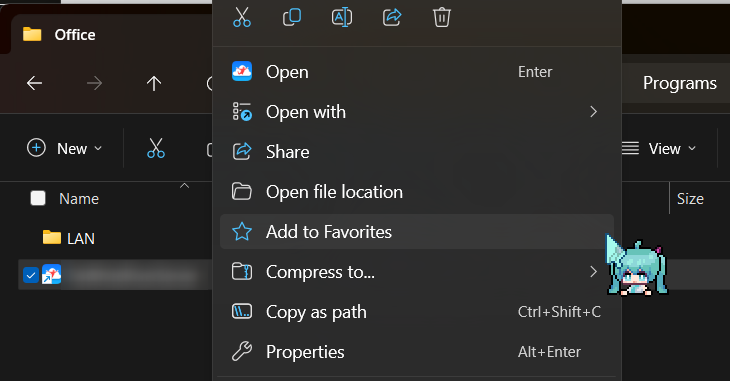
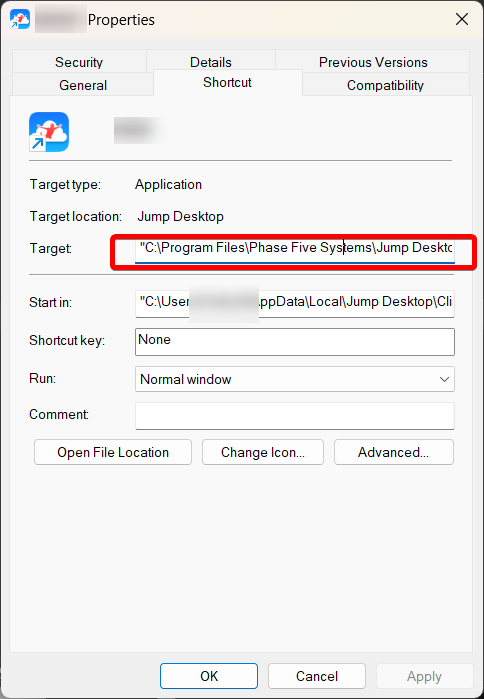
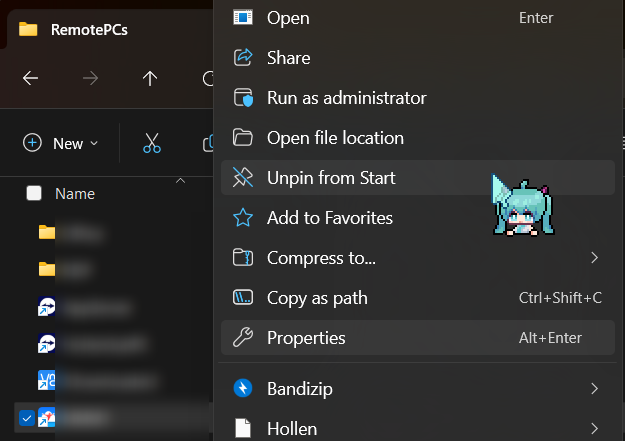
The Windows version in the showcase video is Windows 11, but this techniq is not limited to Windows 11
If you frequently need to connect to remote desktops using VncViewer or TeamViewer, you may want to create shortcuts that can launch these connections with one click. You can also pin these shortcuts to your Windows Start Menu for easy access. In this blog post, I will show you how to do that using command line parameters and connection files.
VNC Viewer
VNC Viewer is a software that allows you to remotely control another computer using the Virtual Network Computing (VNC) protocol. To create a shortcut that can launch a VncViewer connection, you need to have a connection file that contains the information of the remote device, such as its IP address, port number, encryption mode, and password. You can create a connection file by saving the settings of an existing connection in VncViewer.
To create a shortcut that can launch a VncViewer connection, follow these steps:
- Right-click on an empty space on your desktop and select New > Shortcut.
- In the Create Shortcut window, type the following command in the location field:
- Follow one approach guide list below
Approach 1: load from a connection file
"C:\Program Files\RealVNC\VNC Viewer\vncviewer.exe" "path-to-your-vnc-file.vnc"
Replace "path-to-your-vnc-file.vnc" with the path to your connection file. You can use quotation marks if the path contains spaces.
Approach 2: store destination address in the shortcut
Let's say if you want to access remote PC without creating a connection file, you can also type the following command instead:
"C:\Program Files\RealVNC\VNC Viewer\vncviewer.exe" 192.168.1.123:7777
The pro is you don't have to create a connection file apparently; the con is you have to type the password each time you try to connect to the remote PC.
- Click Next and give a name to your shortcut, such as "VncViewer Remote Desktop".
- Click Finish and you will see the shortcut on your desktop.
- To pin the shortcut to your Windows Start Menu, right-click on it and select Pin to Start.
Now you can launch the VNC cViewer connection by clicking on the shortcut or selecting it from the Start Menu.
TeamViewer
TeamViewer is another software that allows you to remotely control another computer using a secure connection. To create a shortcut that can launch a TeamViewer connection, you need to have a control file that contains the information of the remote device, such as its ID, password, and connection mode. You can create a control file by saving the settings of an existing connection in TeamViewer.
To create a shortcut that can launch a TeamViewer connection, follow these steps:
- Right-click on an empty space on your desktop and select New > Shortcut.
- In the Create Shortcut window, type the following command in the location field:
"C:\Program Files (x86)\TeamViewer\TeamViewer.exe" -i 192.168.1.123 --Password 123456789
Replace "192.168.1.123" with the ip address (domain name also work) of the remote PC, and replace "123456789" with the TeamViewer quick access password of the remote PC.
Please estimate the risk of storing visible password in a .lnk file, this may make your remote PC vulnerable.*
- Click Next and give a name to your shortcut, such as "TeamViewer Remote Desktop".
- Click Finish and you will see the shortcut on your desktop.
- To pin the shortcut to your Windows Start Menu, right-click on it and select Pin to Start.
Now you can launch the TeamViewer connection by clicking on the shortcut or selecting it from the Start Menu.
Conclusion
In this blog post, I have shown you how to create shortcuts that can execute commands to connect to remote desktops using VNC Viewer or TeamViewer. You can also pin these shortcuts to your Windows Start Menu for easy access. This way, you can save time and effort when you need to remotely control another computer.